
Understanding our users' need for flexibility and security, IronVest has introduced an 'Account Saving' feature which automatically saves login credentials for new sites. However, if you'd like more control over this, you can easily disable it. Here’s how:
For the new Chrome extension:
-
Go to your IronVest Settings page: https://ironvest.com/app/settings
-
Click the "Extension" section
-
Toggle OFF: 'Auto-save account'


For Firefox and older versions of the extension:
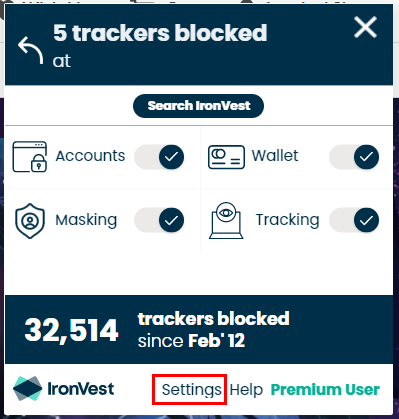
- Access the Extension Settings: Begin by clicking on the IronVest browser extension icon.
- Enter the Settings Panel: From the drop-down menu, navigate to the Settings Panel option.
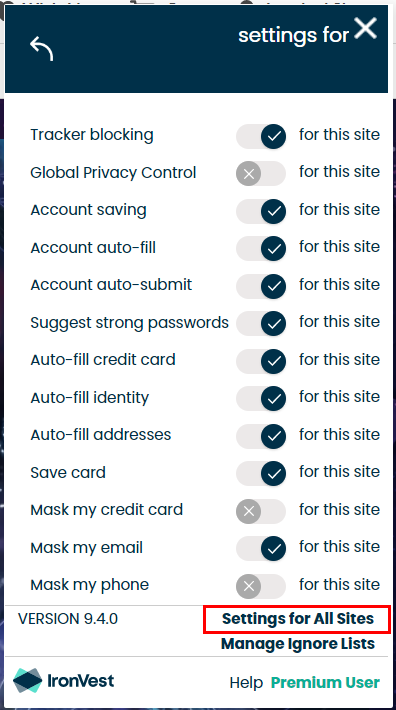
- Go to Settings: Click on the Settings link to view the list of available settings.
- Go to Settings for all sites: Click on the Settings for All Sites link to disable this feature for all accounts.
- Find the 'Account Saving' Option: This is the feature that controls the automatic saving of login credentials.
- Toggle OFF: Simply switch this feature to the 'OFF' position.


By following these steps, the IronVest extension will no longer automatically save your login credentials when you access new sites, and the pop-up notification will also stop appearing.
For any other queries about the functionalities of IronVest or if you need further assistance, feel free to explore our other FAQ articles or contact our support team.
 Can't find what you're looking for?